
Fly that Vintage FlightStick
Joy2Key WiiU Pokken Pro Pad PC - See Top Page 2
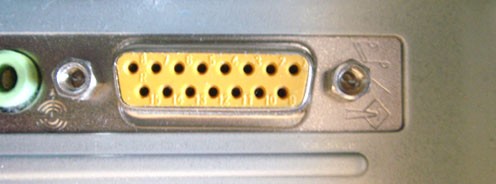
Another Guide in making use of controllers by a new method. This time, older Game Port PC Flightsticks and Joysticks for use in newer PCs. This can be used for both Retro games and Emulators as well as the newest games in the store shelves. I recently posted a Thread which expanded the limited use of Buzz Controllers.
YDKJ with Buzz Controllers - http://www.racketboy.com/forum/viewtopi ... 90#p643690
I was also inspired by fastbilly1's thread to dig out the old sticks and write this Guide.
http://www.racketboy.com/forum/viewtopi ... 64#p641964
PS3 and 360 USB Controllers
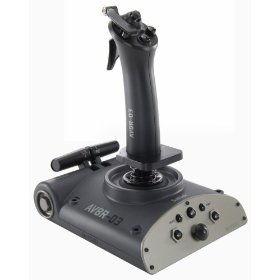
First off, the easy method. PC and most of PS3 and 360 console controllers plug in as standard USB HID so no driver is needed. I tested a Saitek Aviator AV8R-03 PS3 Flightstick which registered as a 13 button Fightstick with Throttle and Rudder. At first, I could not figure the rudder, then realized it was by twisting the stick. USB controllers are so easy to configure, just plug in and set.
I started thinking about some of my other older PC controllers that seldomly are used, in this case due to hardware changes in newer PCs. Anyone who has been in Thrift Stores or a Swap Meet has seen them gathering dust. Usually sold for just a little money due to the obsolete fifteen pin connector. Joysticks, Game Pads, Driving Wheels and most notably Flightsticks that require the Game Port connection. Older PCs have a game port in the sound card or even a separate dedicated card.
I ran a CH Gamecard III dual Game Port on an AT PC for many years that worked beautiful with either two Analog Joysticks or a Flightstick. The ISA card has two game ports and jumpers which I wired with toggle switches to match the type of controller plugged in. It could even be software speed selected to accommodate different Flightsticks and bus speeds.

Most of my PC gaming is now on a Laptop, alas no game port. This is a loss since there are some really nice controllers with the older connector. Here is a look at a couple of very special fifteen pin connector vintage game controllers.
CH Flightstick (Gameport Plug)
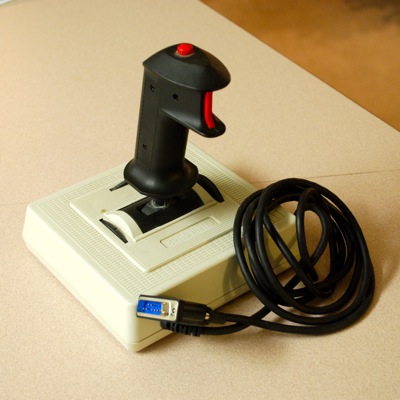
The original CH for the PC! A very well built Flightstick with two buttons and a separate throttle wheel. The CH line operate very smoothly due to solid axles and is no rubber boot around the base of the stick. The springs inside have a light pull compared to other sticks. This has an advantage of the base remaining in place without having to hold it. More importantly, precise adjustments are easy to do against a the light springs when performing Climbs, Dives and Turns. The throttle wheel is a basic and very functional dial. I dabbed a bit of white out at the center point of the dial wheel and potentiometer adjusters for a quick reference. There is also the CH Flightstick Pro that has four buttons and a Hat switch. I'm keeping an eye out, one day I'll find one cheap. Gameport controllers are inexpensive at Thrift Stores, because of the obsolete plug.
CH Mach 1 (Gameport Plug)

A smaller version with the same construction as the Flightstick with two buttons, solid axles and no rubber base boot to jam things up. The Mach 1 have very nice uncommon feature not seen on newer controls. The springs can be disengaged with a simple slide of a mechanical lock switch! Even more impressive is only one or both axis can be disengaged. This is very handy for a secondary Throttle and Rudder control. Very handy, the older game port sticks I own really need to be put to use again!
Game Port USB Adapter
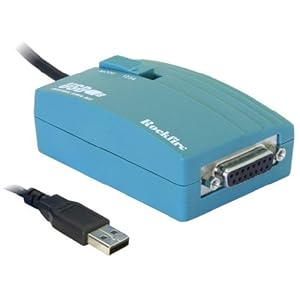
This adapter is a standard instant recognized USB HID, no drivers needed. It allows older game port controllers to work in newer USB controlled games. There are a few different models on the market. I settled for the Rockfire RM-203 which seemed to have the best capabilities. It offers four different modes, I set mine to Mode 2. The Rockfire emulates the four primary axis and four primary switches just like the original game port. It also supports a hat switch.
The USB adapter works great with a single Flightstick, but what of two joysticks? A dilemma of a second USB adapter or some way to make the single USB adapter work. This is not really a cost issue, more of how the PC would detect the Joysticks as one controller with four axis and four buttons or two separate controllers, each with two axis and two buttons. A look at the old game port layout show two controllers can share the same port.Rockfire Modes
Mode 1: Avant Garde, Bazooka Fighter, and Thrustmaster FCS compatibles
Mode 2: Maya Fighter, and CH Products Flightstick Pro compatibles
Mode 3: Fire Plus, Fire Dragon, and other 4-axis, 4-button joystick compatibles
Mode 4: Silver Hawk II, Space Ranger, and other sophisticated 2-axis, 6-button gamepad compatibles
DB15M/2DB15F Y cable - Two PlayersAll Pinouts wrote:http://www.allpinouts.org/index.php/Joy ... C_Gameport
15 PIN D-SUB FEMALE at the computer
15 PIN D-SUB MALE at the joystick cable
01 -- +5 VDC
02 -- Button 1
03 -- Joystick 1X
04 -- Ground
05 -- Ground
06 -- Joystick 1Y
07 -- Button 2
08 -- +5 VDC
09 -- +5 VDC
10 -- Button 3
11 -- Joystick 2 - X
12 -- Ground (shared with MIDI_OUT)
13 -- Joystick 2Y
14 -- Button 4
15 -- +5 VDC (shared with MIDI_IN)


A simple fifteen pin Y Cable is needed, but with one important feature. The Y connection must separate the pair of axis and buttons to each dedicated controller. One could be built from the diagram above, or just buy one. Look for a Y cable that is specific to the game port. I used an older out of stock Radio Shack cable #26-380.
- CH Flightstick and Mach 1 Properties.jpg (56.99 KiB) Viewed 58475 times
The computer instantly recognizes the USB adapter with Y cable as one controller. Without the cable, I can use the Flightstick with its built in throttle. If I use the Y Cable with the Flightstick in the primary port, the throttle is disabled. The other port is covered by the CH Mach Joystick which handles the throttle and rudder. A very nice feature is the springs off mode of the Mach 1 which allows fine setting the throttle at any thrust level. The rudder as well can go spring on or off depending on the requirement.

PC Falcon 4.0
The adapter route allows vintage controller compatibility to any new game that uses the USB port. I wanted to try an older and one of the best Combat Flight Sims. MicroProse Falcon 4.0 from a bygone era of PC Desktop flying. This simulator comes with a huge Ring Binder Flight Manual, older PC games had some serious documentation. One thing I really like about older Disc based PC games is a COMPLETE install option. This saves headaches of popping a CD in just to play a game.
New games also work with the adapter, but Falcon 4.0 is one of the best.
Look at that canopy reflection, this old Flight Simulator holds up well!

After downloading the 1.08 Update to Falcon 4.0, this Win 95 sim works just fine in Windows XP. Using just the CH Flightstick with the adapter, I have Control with Throttle and two buttons. To add capabilities, I added the Y Cable which disables the Throttle on the Flightstick. However, I gained two more buttons, throttle and rudder control on the Mach 1 Joystick plugged in the other end of the Y cable. The Mach 1 Up and Down Spring is turned off for smooth hold increments of the throttle.
My control setup does not have a Hat Switch, but I can use a combination of buttons to engage it. Holding both buttons 1 and 2 makes a left on the Hat. Add button 3 from the Mach 1 is Hat down, pressing Button 4 is Hat right and holding all four buttons is up on the Hat switch. This is a little cumbersome and is a learned process. However, it does prove a Flightstick with one Hat switch works with the USB adapter.
Hat Switch Left = Fire Buttons 1 2
Hat Switch Down = Fire Buttons 1 2 3
Hat Switch Right = Buttons 1 2 4
Hat Switch Up = Buttons 1 2 3 4
It works! Check out the scroll of key commands, Vintage Desk Pilots have tons of controls.
- Falcon 4.0 Controls.jpg (112.49 KiB) Viewed 58475 times
I was concerned the PC would not isolate the two controllers for two player games with the Y cable arrangement going into the single USB adaper. Some games will not work in two controller mode unless a second USB adapter is attached. However, Mame works beautiful! Each controller is identified thru the default TAB Menu. A simple trick of assigning the proper control to given action.

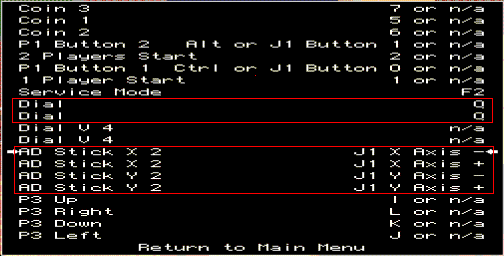
Mame Settings Y Cable USB Adapter
Player One - J1 X Axis, J1 Y Axis, J1 Button 0 and J1 Button 1
Player Two - J1 Slider, J1 Z Rotation, J1 Button 3 and J1 Button 4
Arcade Game with Analog Control
Arcade purists swear by Arcade Digital Sticks, which I tend to agree. However, I really wanted to play Space Duel again with my Mach 1 Joysticks. The springs on and off capability is great depending on the game. I set Springs off for the sideways control to give a more float in outer space feel. Each ship needs sideways stick rotation and three buttons for Thrust, Fire and Shields. Using the above settings, shields is a natural by pulling back on the stick.

No Input Lag
Time and again I see posts about input lag when plugging controllers into adapters. Electronic signals feed so much faster then one could move a stick or push a button. The lag is usually the result of the game itself keeping up with drawing the screen and producing the sounds. A simple read of buttons or potentiometers have little draw on the CPU of a console or PC.
Helicopters and other Sims
Imagine the four axis control option with a Helicoptor simulator! I have an Apache Sim I'll try next. One stick is the Cyclic and the other stick can serve as the Collective and Rudder controls. Or add a set of pedals to complete the flight. A revisit to the Microsoft Flight Sim series is definitely worth looking into.
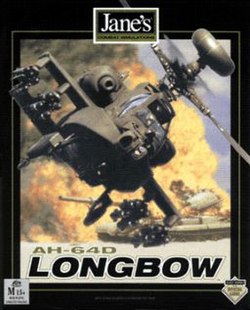
Take the sim control a step further with inexpensive PVC pipe.


 PVC Pipe Flight Control
Conclusion
The Game Port USB adapter is a standard USB HID, Window instantly recognizes it as a game controller without need of any drivers. This leads to discovering a HUGE selection of older Game Port controllers, some of very high quality. There are so many classic older controllers out there that can be tried on a newer PC. I see game port controllers all the time at various Thrift Stores, neglected and sold cheap due to the incompatibility with modern PCs.
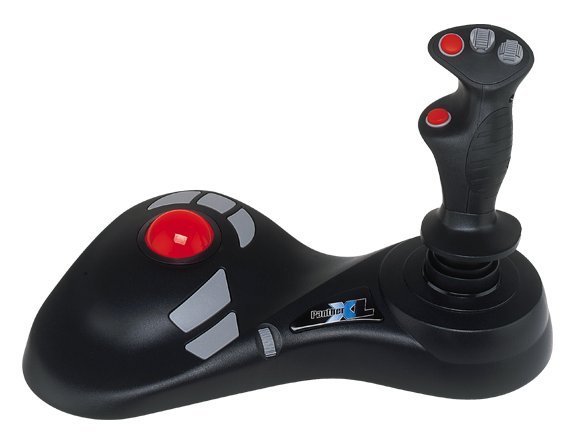
Now if I can get my Madcatz Panther XL combo TrakBall Flightstick to work, that would be something!
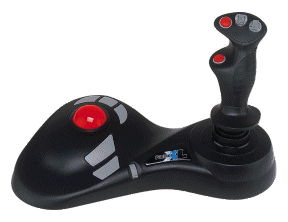
Just to get an idea of the various possibilities, here are a few from a member here. Note that some of the Flightsticks buttons or analog controls may not work going the USB adapter route.
Referencessharkiegamer777 wrote: http://www.racketboy.com/forum/viewtopi ... 25#p298525
Thrustmaster Top Gun Afterburner II (PC), Suncom SFS Throttle & Stick (PC), Logic 3 Phantom 2 Dual Mode Joystick (PC), Logitech 3D Extreme Pro Joystick (PC), Saitek Cyborg Flight Stick (PC), Gravis Firebird Programmable Flight & Game Controller (PC), Saitek x8-33GU 2 in 1 Joystick (PC), Microsoft SideWinder Force Feedback Pro (PC), CH Products Flight Stick Pro (PC), Microsoft SideWinder 3D Pro (PC), Gravis Destroyer (PC), Genius MaxFighter F-16 Joystick (PC), Logitech Wingman Extreme Digital (PC), Logitech Wingman Light (PC), Logic 3 Phantom Joystick (PC), DSE Joystick (PC), RadioShack Joystick (PC), CH Products Flight Stick (PC), QuickShot Joystick Model:QS-123E (PC), QuickShot Pro Joystick Model: QS-123 (PC), Logic 3 Tornado (PC), Microsoft Sidewinder Joystick (PC), DSX Joystick (PC), Quickshot SkyHawk Joystick Model: QS-209 (PC), RockFire Joystick (PC), Quickshot Joystick Model: QS-6219 (PC), Suncom Analog Edge Joystick (PC/MAC)

Wiki Game Port - http://en.wikipedia.org/wiki/Game_port
CH Products - http://www.chproducts.com/13-28464-Home.php
Vintage controllers to new PC - http://www.coralnet.de/retroconnection/
CH Flightstick Pro Mod - http://www.koch-engineering.com/index.p ... lightstick
Rockfire USB Adapter - http://rockfire.com.tw:8880/index.php/p ... -converter
PVC Pipe Flight Controls - http://www.rogerdodger.net/diyflightsim ... opter.html
Wiki Falcon 4.0 - http://en.wikipedia.org/wiki/Falcon_4.0
50 Most Notable PC Peripherals - http://www.maximumpc.com/article/featur ... s?page=0,4
Rockfire USB Adapter Amazon - http://www.amazon.com/dp/B004HAX7OU/
Game Port Y Cable Amazon - http://www.amazon.com/dp/B001DRWLNS
Right Click for a larger pic
Falcon 4.0, Rockfire USB Adapter, Y Cable, CH Flightstick and Mach 1 Joysticks. Note the Mach 1 Joysticks with the springs in the unlocked mode for throttle and rudder capability.
- Falcon 4.0 - USB Nest - Gameport Y Adapter - CH Flightstick - CH Mach 1.jpg (209.49 KiB) Viewed 58475 times
















 I managed to find the Game Controller calibration wizard from Windows 10, but it doesn't help. The input I give to the physical stick seems not to come through to Windows at all.

 ), but the setup fails to run in this windows version (not very surprising that).